

An online Python compiler lets you write and run Python in the browser, with nothing to install. That is perfect for homework, a quick test of an idea, an interview exercise or a school computer where you cannot install anything. But the tools are not equal: some only print output, while others give you a real terminal, a debugger, libraries and a place to keep your files.
This guide compares the six online Python compilers people use most in 2027, so you can pick the right one for what you are doing.
How we tested
We opened every compiler in a fresh browser window without signing in, ran the same small program that reads numbers from the keyboard, and checked what each one offers for input, debugging, files, sharing and help. Screenshots were taken in November 2026.
Quick comparison
| Tool | Keyboard input | Step debugger | Visualizer | Multiple files | Collaboration | Best for |
|---|---|---|---|---|---|---|
| CodeUtility | Yes, live terminal | Yes, breakpoints | Yes | Yes, saved workspace | Live workspace, cursors, chat | Learning, projects and teams |
| Programiz | Yes | No | Yes | No | Share link | Beginners following tutorials |
| OnlineGDB | Yes | Yes | No | Yes | Share link, classroom | Debugging and class exercises |
| JDoodle | Yes, interactive mode | Yes | No | Yes | Share link | Quick runs and developer API |
| OneCompiler | Yes | Yes | No | Yes | Share link | Many languages in one place |
| Python Tutor | Limited | Step through only | Yes | No | Share link | Understanding how code runs |
1. CodeUtility Python Compiler: the most complete free option
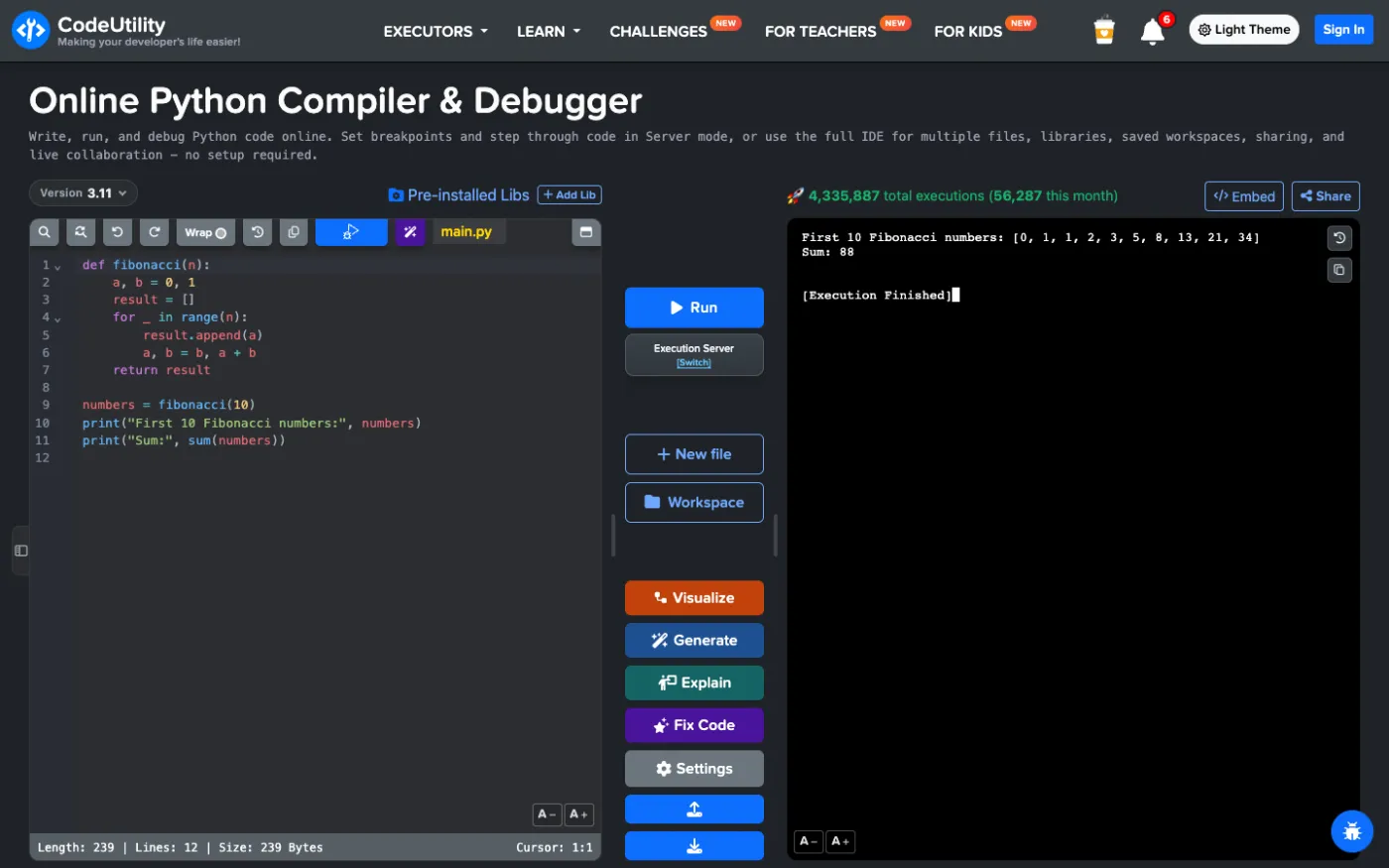
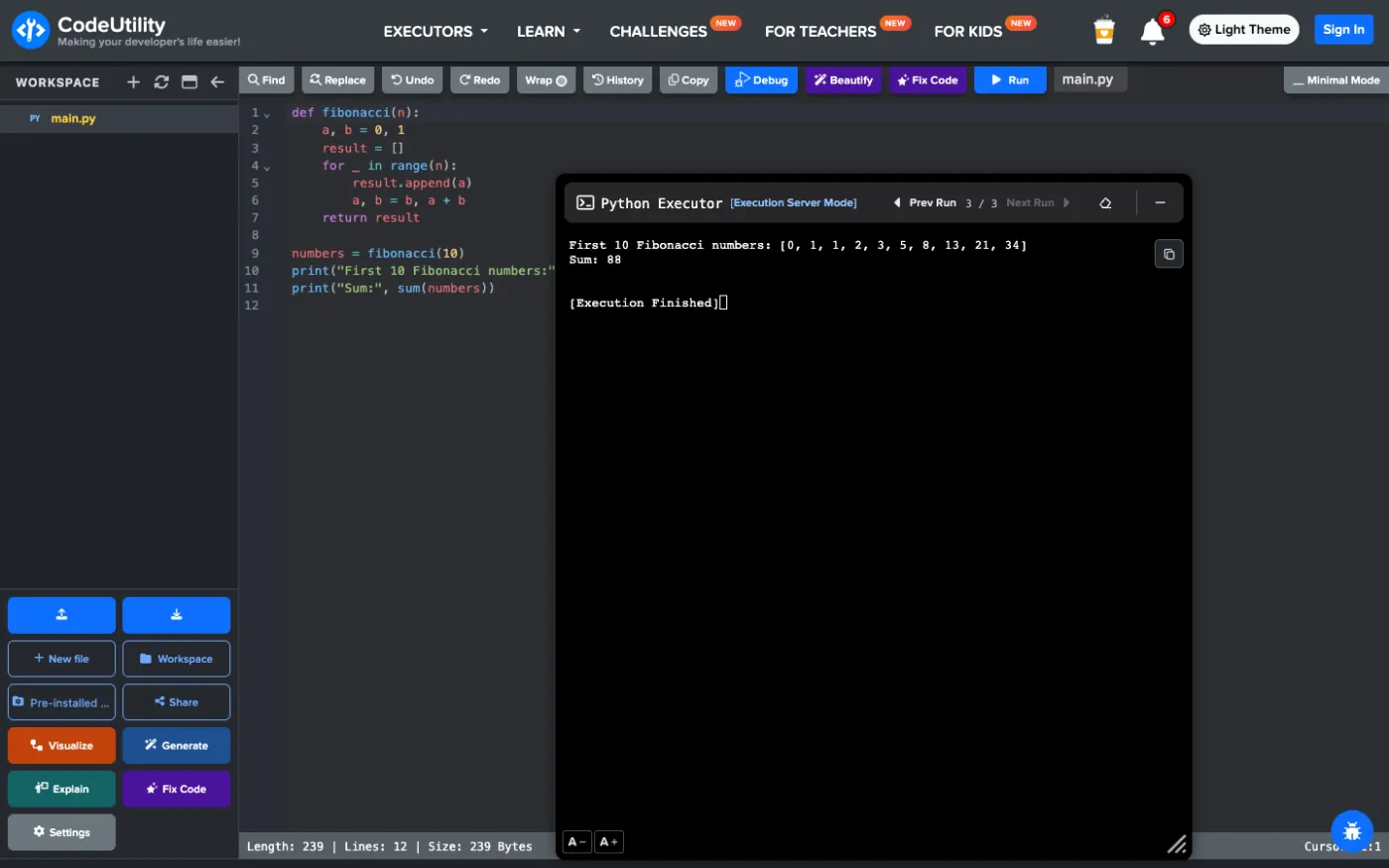
CodeUtility is a full Python IDE in the browser. It is free, works without an account for running, debugging and visualizing code, and has already run more than 4.3 million Python programs. Here is what you get.
Run Python 3.10, 3.11 or 3.13 with a real terminal
Pick the Python version from the menu and select Run. Output appears in a real terminal, so input() works the way it does on your computer: the program stops, you type your answer and press Enter. Each run is saved, and the Prev Run / Next Run arrows let you compare outputs.
You can also switch the runner from Execution Server to Browser Python, which runs your code locally in the browser with WebAssembly. That is handy for very fast runs on a slow connection; libraries you install and interactive input use the Execution Server.
Debug with breakpoints
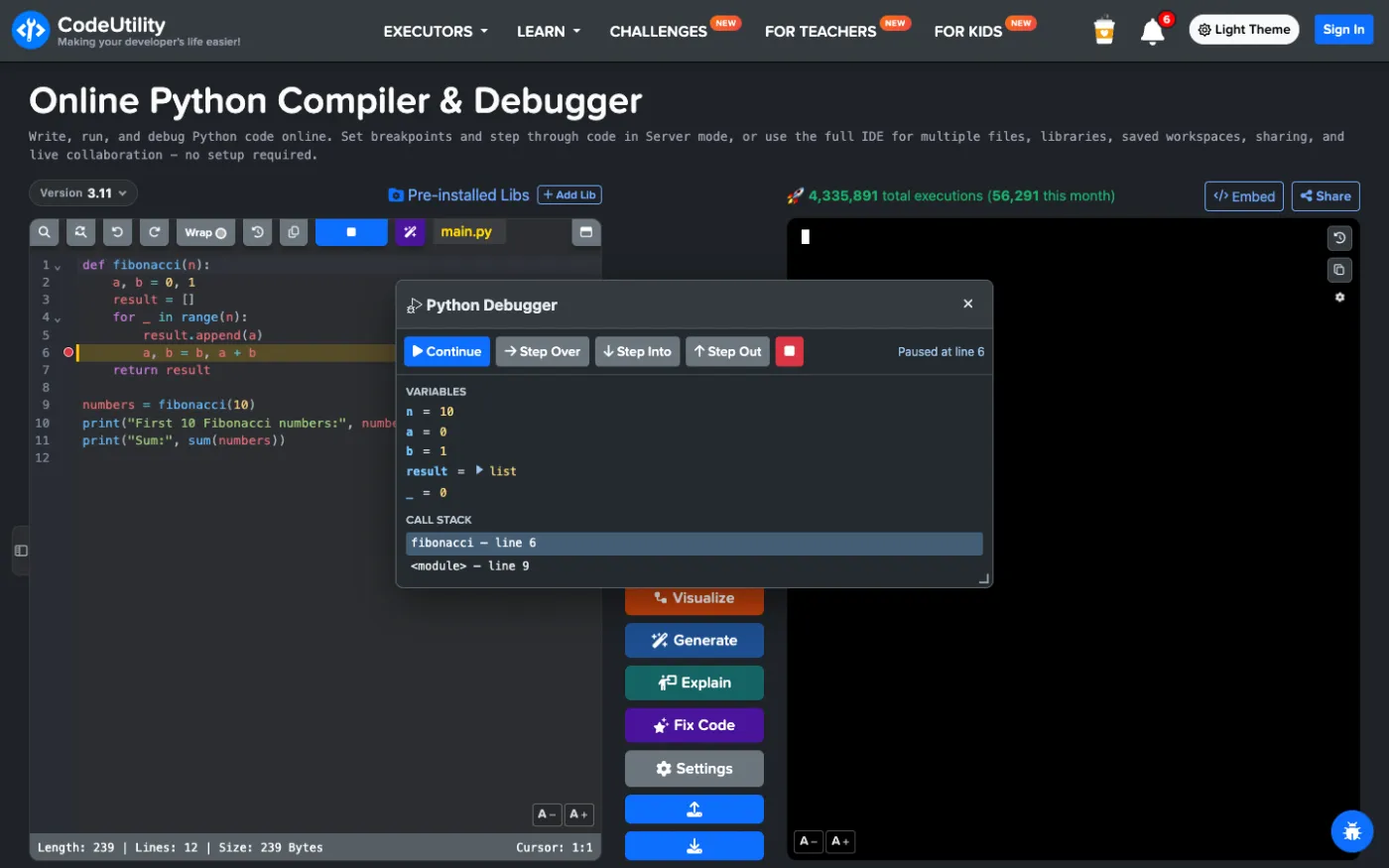
Click a line number to set a red breakpoint, then select Debug. The program pauses on that line and shows every variable and the call stack. Use Step Over, Step Into, Step Out and Continue like in a desktop IDE. Most online Python compilers cannot do this.
See your code run with the Python Visualizer
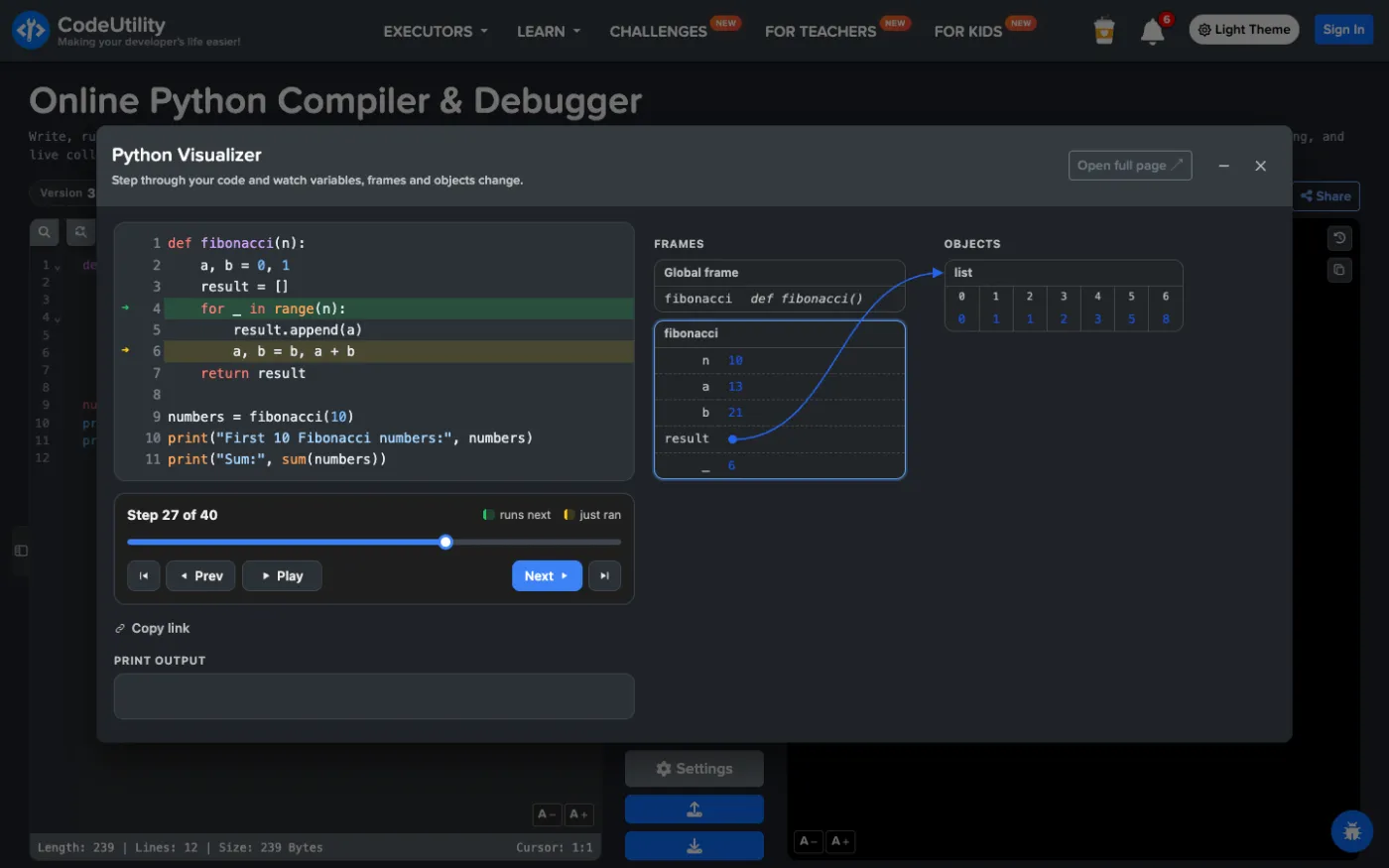
The Visualize button opens a step player that draws frames, variables and objects, with arrows from each name to the list or object it points to. Drag the slider or press Play to watch a loop build a list. It is the clearest way to understand recursion, references and mutable objects, and you can copy a link to share the exact visualization.
235 libraries ready, and you can add your own
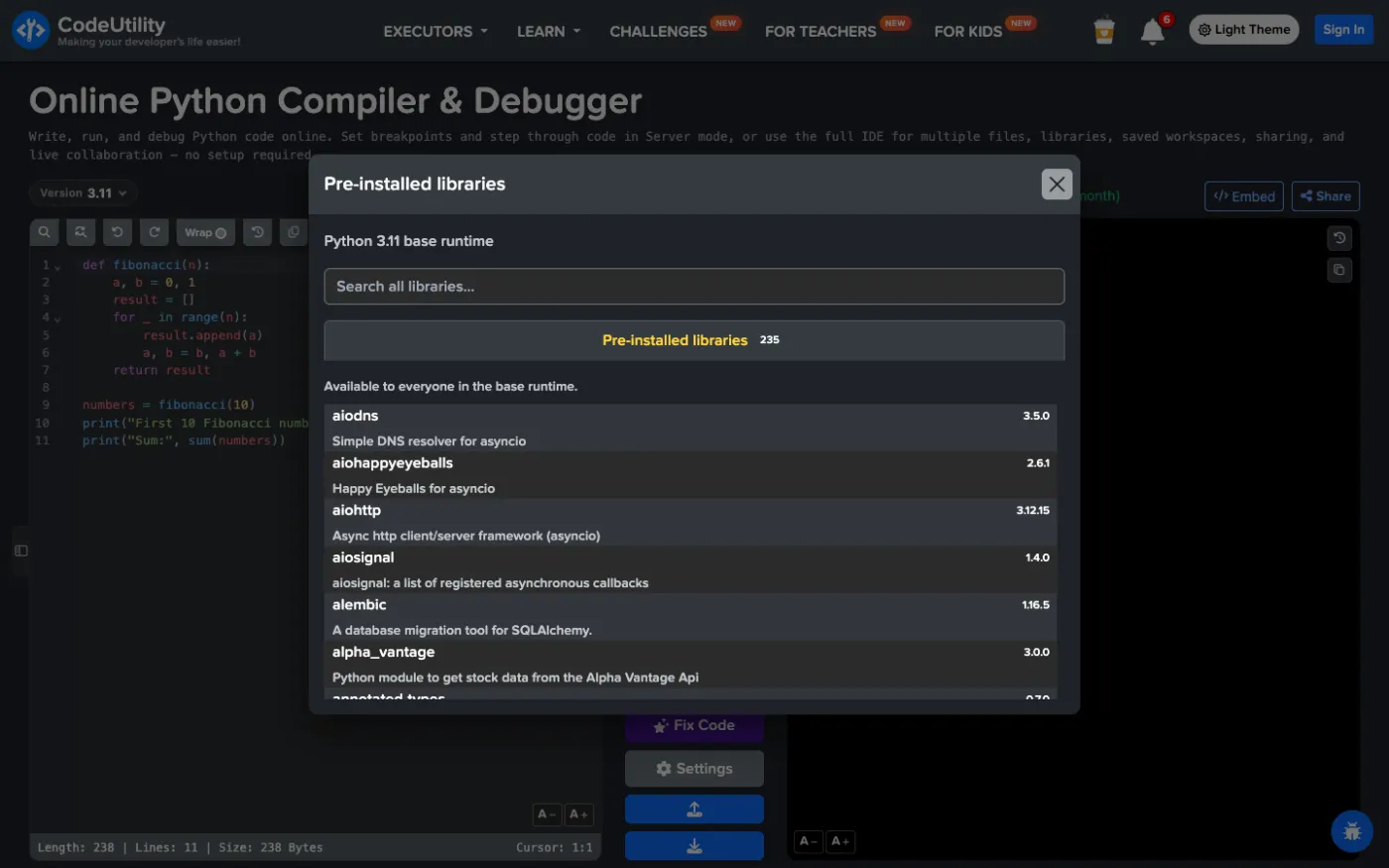
The base runtime already includes 235 packages (requests, aiohttp, SQLAlchemy and many more). Search them in Pre-installed Libs. When you sign in, Add Lib installs extra packages from PyPI into your own runtime. For charts, the separate Matplotlib editor shows plots right next to your code.
A full IDE when your project grows
Advanced Mode (Ctrl/Cmd+M) switches to an IDE layout with a file explorer and a movable, resizable terminal. Signed-in users get a saved workspace with folders, uploads, downloads, file history and up to 100 files per language, so a project with several modules is no problem.
Share, collaborate and get AI help
- Share a file, a folder or the whole workspace as a snapshot or a live workspace, and choose who can view or edit.
- Live collaboration shows other people's cursors and saved changes, with a chat for the share.
- Embed gives you a Run button for a README, blog or course page.
- Generate, Explain and Fix Code use AI to write code from a description, explain the current file or suggest a fix with a diff. They are free with an account.
- Beautify, find and replace, themes and font settings are in the toolbar.
If you are learning, the same page links to Python lessons and coding challenges, and teachers can create classes with assignments.
Strengths
- Real terminal input, a step debugger and a visualizer in one free page
- Three Python versions and 235 preinstalled libraries
- Saved multi-file workspace, sharing and live collaboration
- AI Generate, Explain and Fix Code
Limitations
- Installing your own libraries and AI tools need a free account
Best for: students, teachers and developers who want one place to run, debug, understand and share Python.
Try the CodeUtility Python compiler
2. Programiz Python Compiler
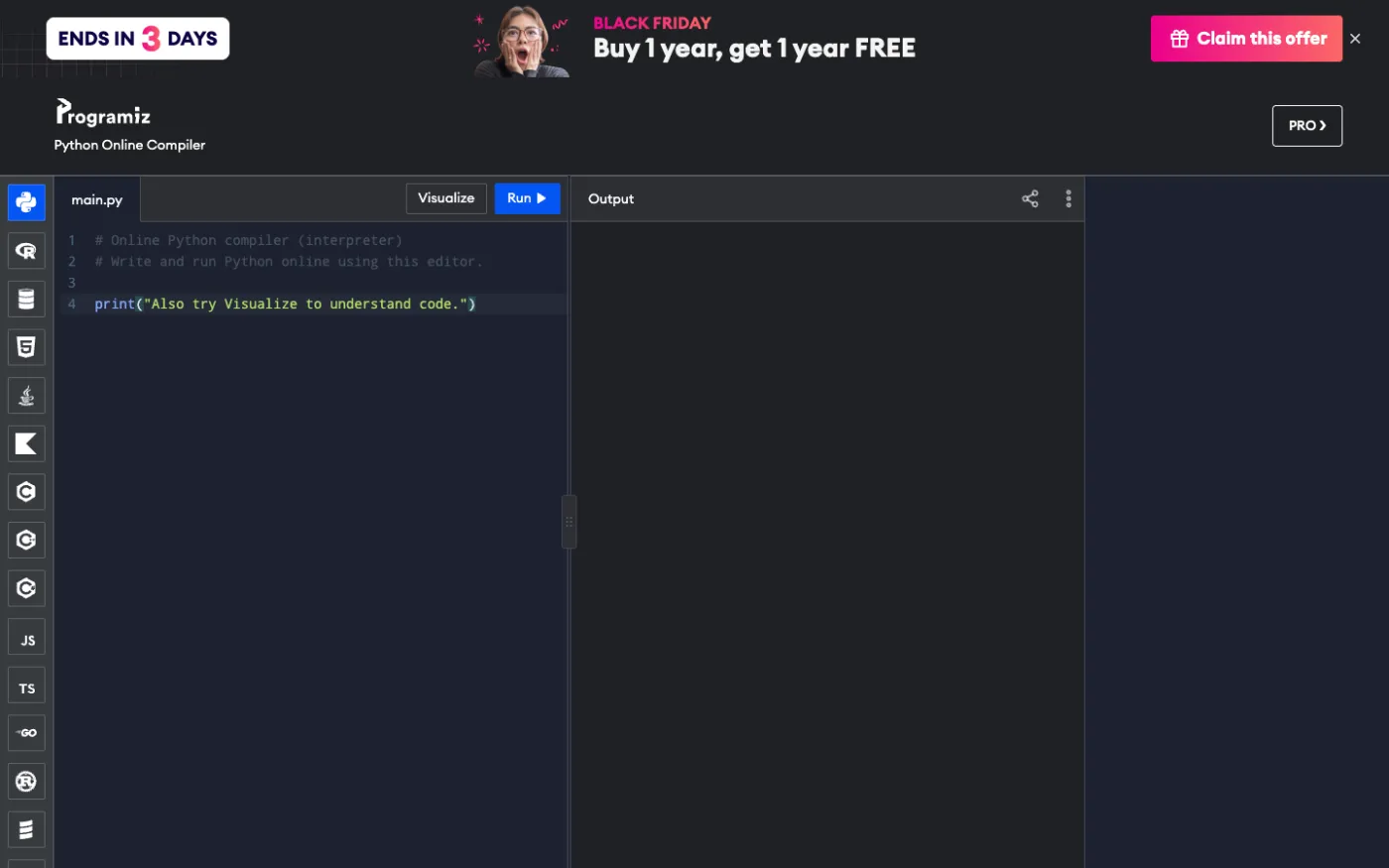
Programiz is known for its beginner tutorials, and its compiler has the same clean, simple style: one file, a Run button and an output panel that accepts input. A newer Visualize button steps through your code line by line. The page shows promotions for its paid Pro plan.
Strengths
- Very simple interface for first programs
- Built-in step visualizer
- Fits well with the Programiz tutorials
Limitations
- One file only, no saved workspace
- No breakpoint debugger or library manager
- Promotional banners for the paid plan
Best for: absolute beginners who follow Programiz lessons.
3. OnlineGDB
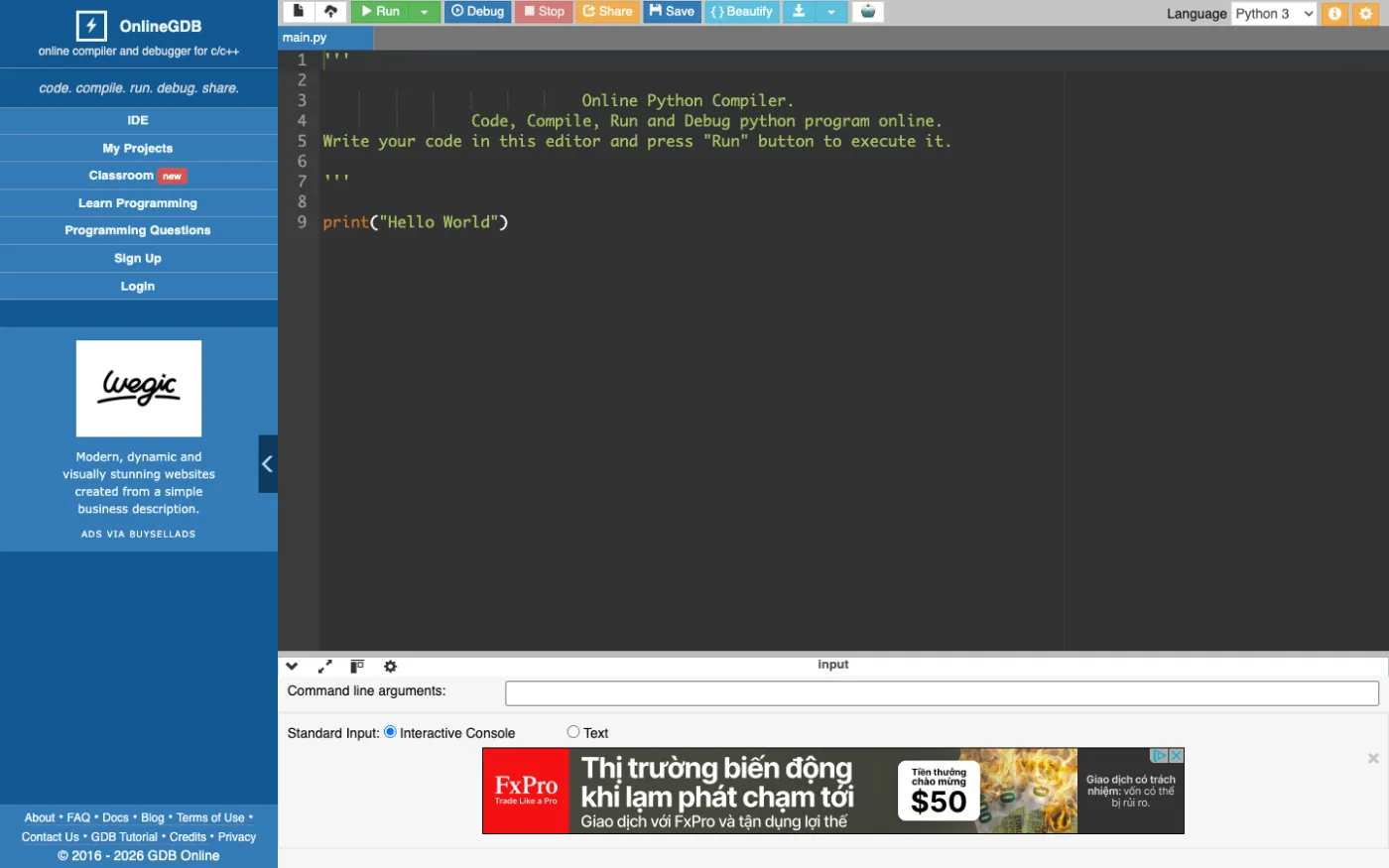
OnlineGDB started as a C/C++ debugger and still focuses on debugging. For Python it has a Debug button, an interactive console or a text box for input, command line arguments, a beautifier and project files. Teachers can use its classroom feature. The interface looks dated and shows ads in the sidebar and under the editor.
Strengths
- Debugger and command line arguments
- Multiple files and saved projects with an account
- Classroom feature
Limitations
- Older interface with ads
- No visualizer, no live collaboration
Best for: students who need a debugger and command line arguments.
4. JDoodle
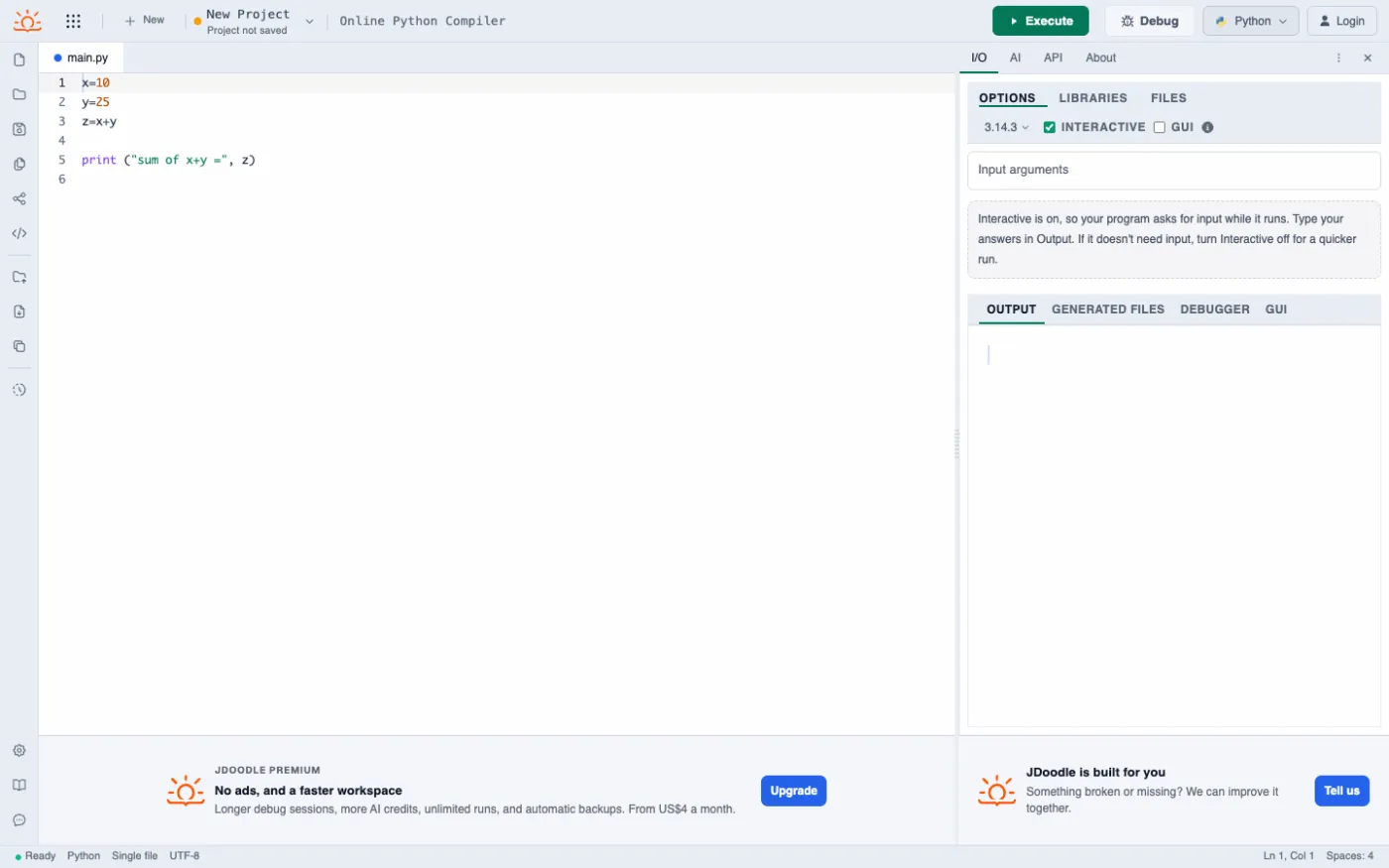
JDoodle supports a long list of languages and recent Python versions. Its right panel has tabs for options, libraries, files, a debugger and an AI assistant, and an Interactive switch decides whether the program can ask for input while it runs. JDoodle also sells a compiler API for developers who want to run code from their own apps.
Strengths
- Recent Python version, libraries tab and debugger
- Compiler API for developers
- Clean editor
Limitations
- Interactive input is a separate mode
- Free plan has limits; ads and upgrade prompts
Best for: quick runs and developers who need an execution API.
5. OneCompiler
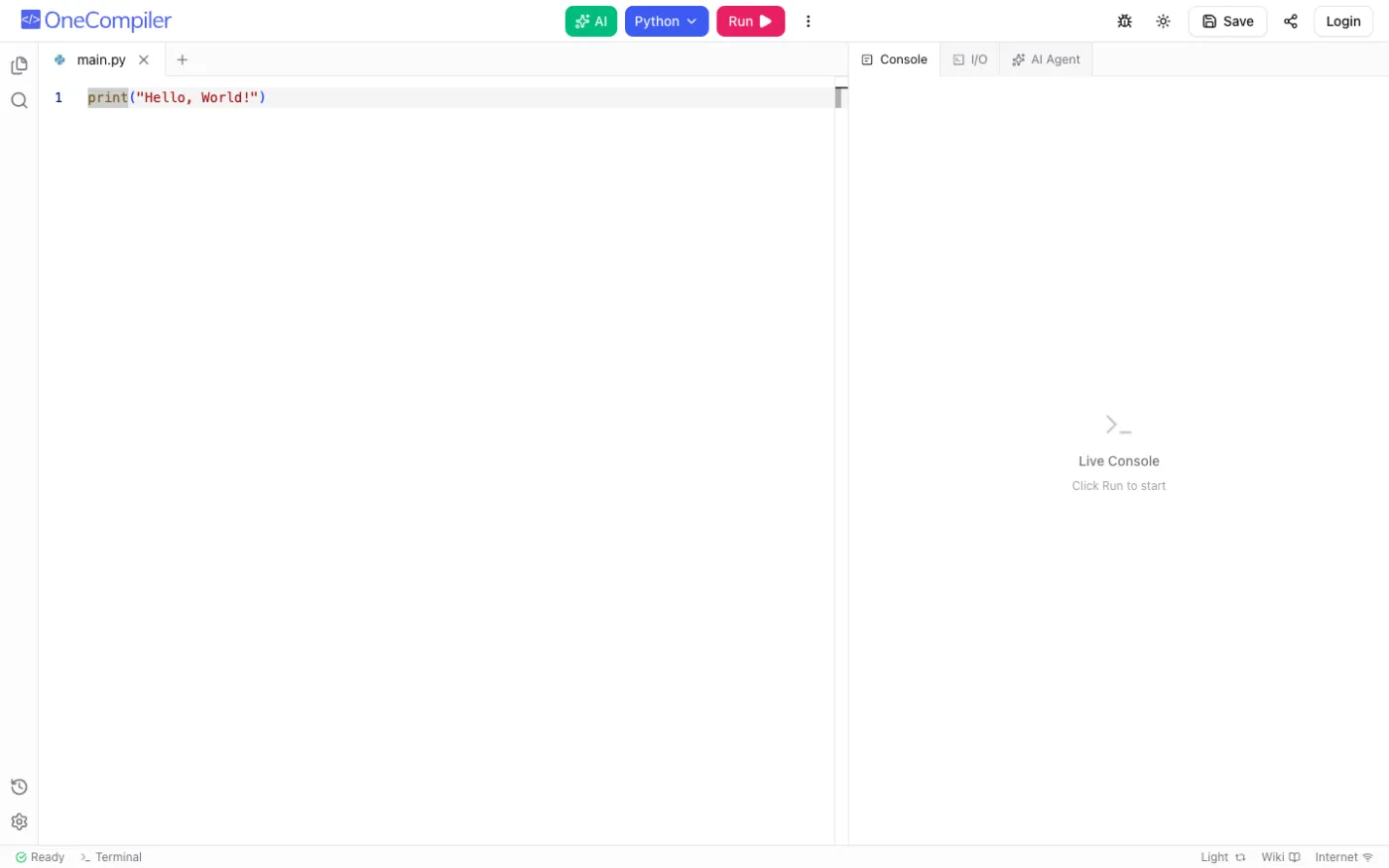
OneCompiler covers dozens of languages with the same layout: tabs for files, a live console, an I/O tab and AI tools including an AI agent. You can save and share code after signing in.
Strengths
- Many languages with one consistent interface
- Multiple files, live console and AI tools
Limitations
- Python-specific tools such as a visualizer or library browser are missing
- Saving needs an account
Best for: people who switch between many languages.
6. Python Tutor
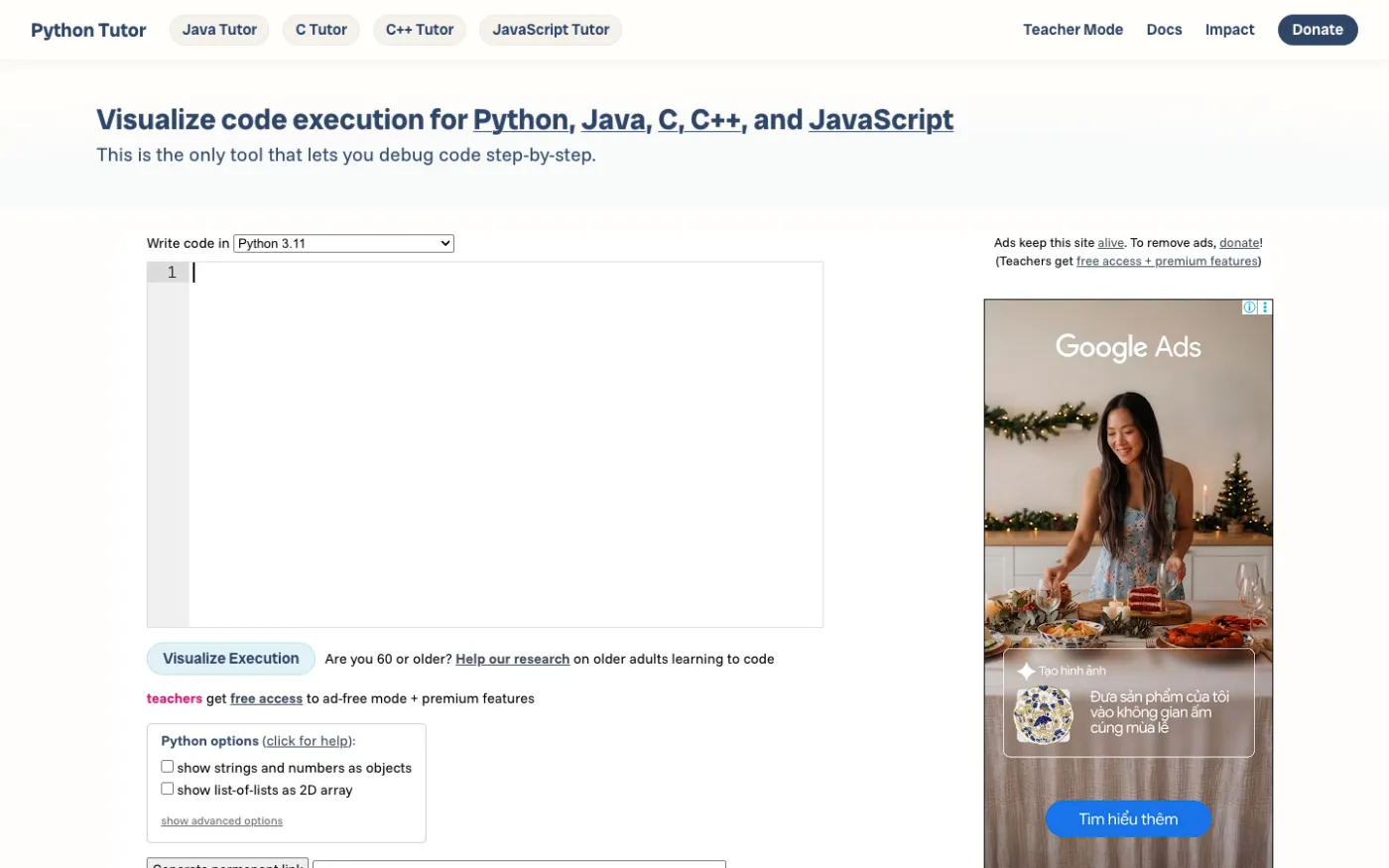
Python Tutor is not a full compiler but a famous visualizer used in many universities. Paste a short program, select Visualize Execution and step through frames and objects. It is excellent for teaching, but it limits program size and run time, has limited input support and cannot install libraries.
Strengths
- Classic, trusted visualizer
- Free access for teachers
Limitations
- Not a general compiler: short programs only, few libraries
- No files, no project work
Best for: understanding small examples step by step.
Which online Python compiler should you choose?
- You want one free tool that does everything: CodeUtility, with input, debugger, visualizer, libraries and a workspace.
- You are on your first lesson and follow Programiz tutorials: Programiz.
- You need command line arguments or a classroom: OnlineGDB.
- You need an API to run code from your own app: JDoodle.
- You only want to see how a short example runs: Python Tutor, or the CodeUtility Visualizer if you also want to run and debug it.
FAQ
Can I use input() in an online Python compiler?
Yes, if the compiler has an interactive terminal. In CodeUtility the program pauses at input() and you type the answer in the terminal, just like on your own computer. Some tools need you to enter all input in a box before running.
Can I install Python packages online?
CodeUtility already includes 235 packages, and with a free account you can add more with Add Lib. Tools without a library manager only offer the standard library.
Is there an online Python compiler with a debugger?
Yes. CodeUtility, OnlineGDB, JDoodle and OneCompiler have debuggers. CodeUtility shows breakpoints, variables and the call stack, and adds a visualizer for frames and objects.
Which Python versions can I run online?
CodeUtility offers Python 3.10, 3.11 and 3.13. Other tools usually run one recent Python 3 version.
Ready to try? Open the CodeUtility online Python compiler and paste your code.