

Installing a C++ compiler and debugger is a hurdle when you only want to test a function, finish an assignment or practice for an interview. An online C++ compiler removes it: write the code, select Run and read the output. The differences show up as soon as your program reads from cin, crashes, or grows past one file.
We compared the six online C++ compilers developers and students use most in 2027.
How we tested
We opened every compiler in a fresh browser window without signing in, ran the same small program that reads numbers from the keyboard, and checked what each one offers for input, debugging, files, sharing and help. Screenshots were taken in November 2026.
Quick comparison
| Tool | Keyboard input | Debugger | Standards | Multiple files | Collaboration | Best for |
|---|---|---|---|---|---|---|
| CodeUtility | Yes, live terminal | GDB with breakpoints | Latest, C++11, 14, 17 | Yes, saved workspace | Live workspace, cursors, chat | Learning, debugging and teams |
| Compiler Explorer | Stdin box | No (assembly view) | Hundreds of compilers | Yes | Share link | Performance and compiler output |
| OnlineGDB | Yes | GDB | Selectable | Yes | Share link, classroom | Debugging class exercises |
| Programiz | Yes | No | One default | No | Share link | Beginners |
| JDoodle | Yes, interactive mode | Yes | Selectable | Yes | Share link | Quick runs and API |
| OneCompiler | Yes | Yes | One default | Yes | Share link | Many languages in one place |
1. CodeUtility C++ Compiler: run, debug and share in one page
The CodeUtility C++ compiler is free, runs without an account and has compiled more than 2.4 million C++ programs. It combines a real terminal, a GDB debugger, a browser compiler and a full IDE.
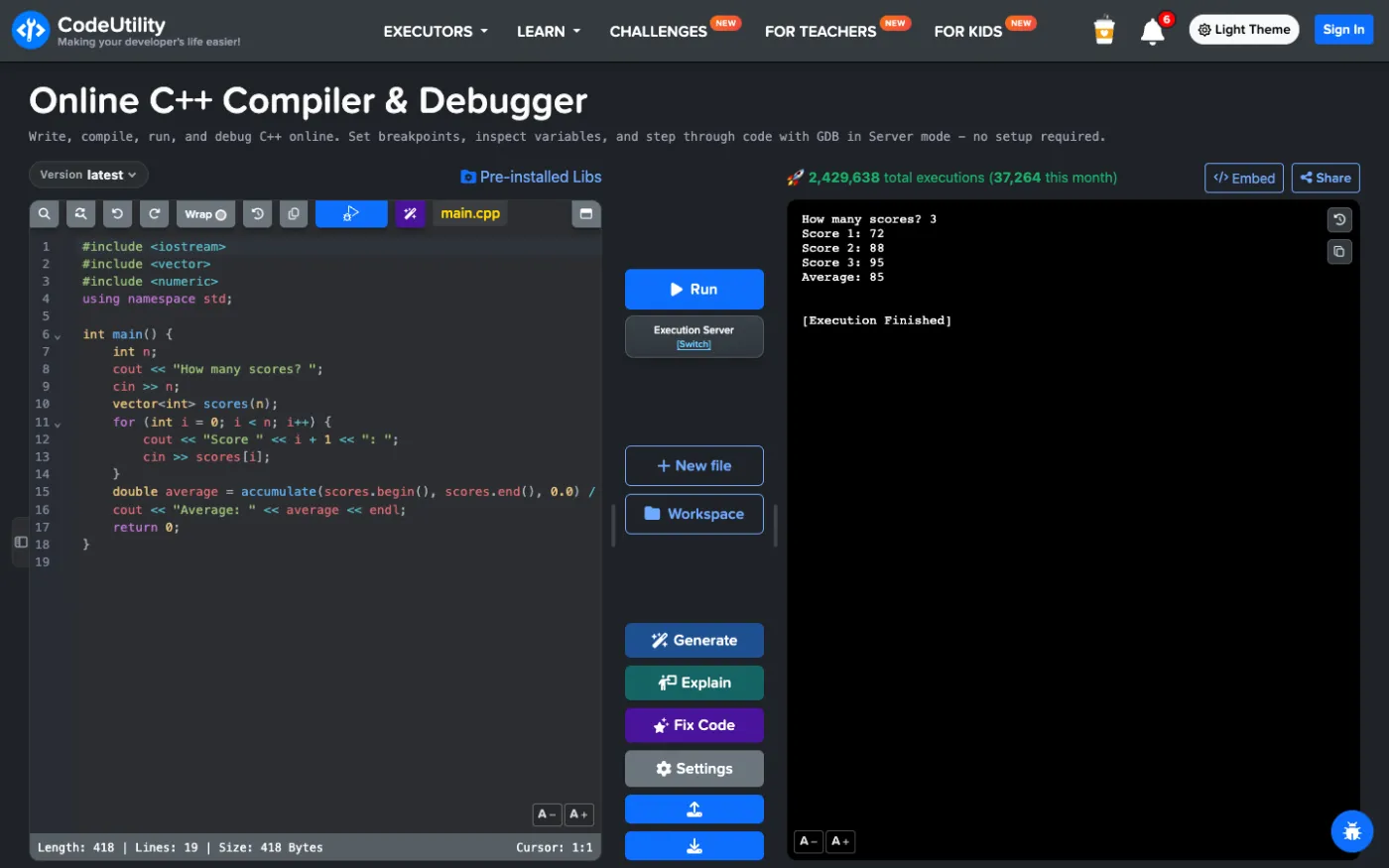
Real input with cin
Programs run in a real terminal, so cin waits for you to type, exactly like on your computer. In the screenshot the program asks how many scores to read, then asks for each one. You do not need to guess all input in advance. Each run is saved so you can step back through earlier outputs.
Choose the C++ standard
The Version menu switches between the latest standard and C++11, C++14 and C++17, which helps when an assignment or an old codebase requires a specific standard.
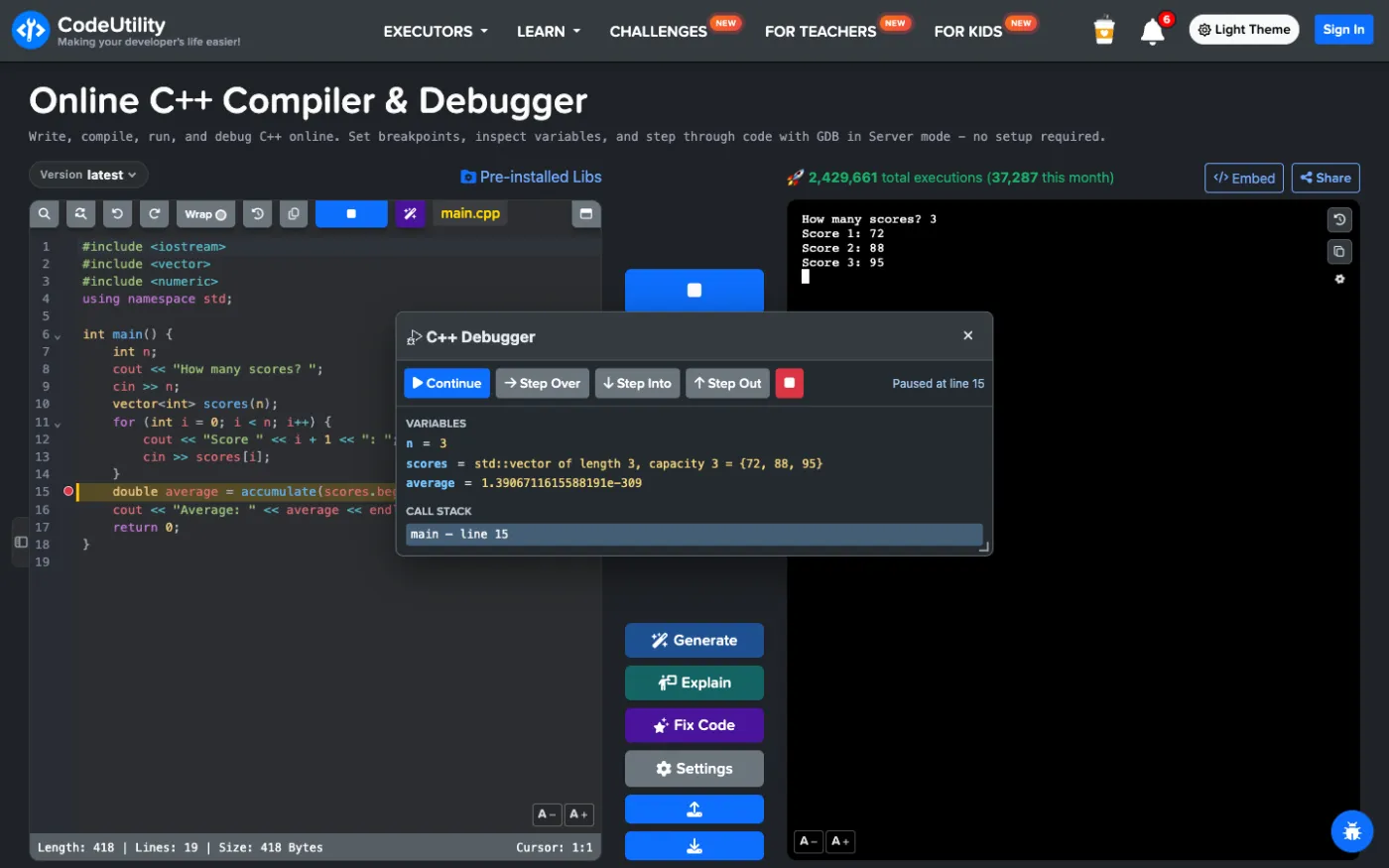
Debug with GDB: breakpoints, variables and call stack
Click a line number to add a breakpoint and select Debug. CodeUtility runs your program under GDB, stops at the breakpoint and shows local variables, including the contents of a std::vector, plus the call stack. Step Over, Step Into, Step Out and Continue work like in Visual Studio or CLion, and you can still type input in the terminal while debugging.
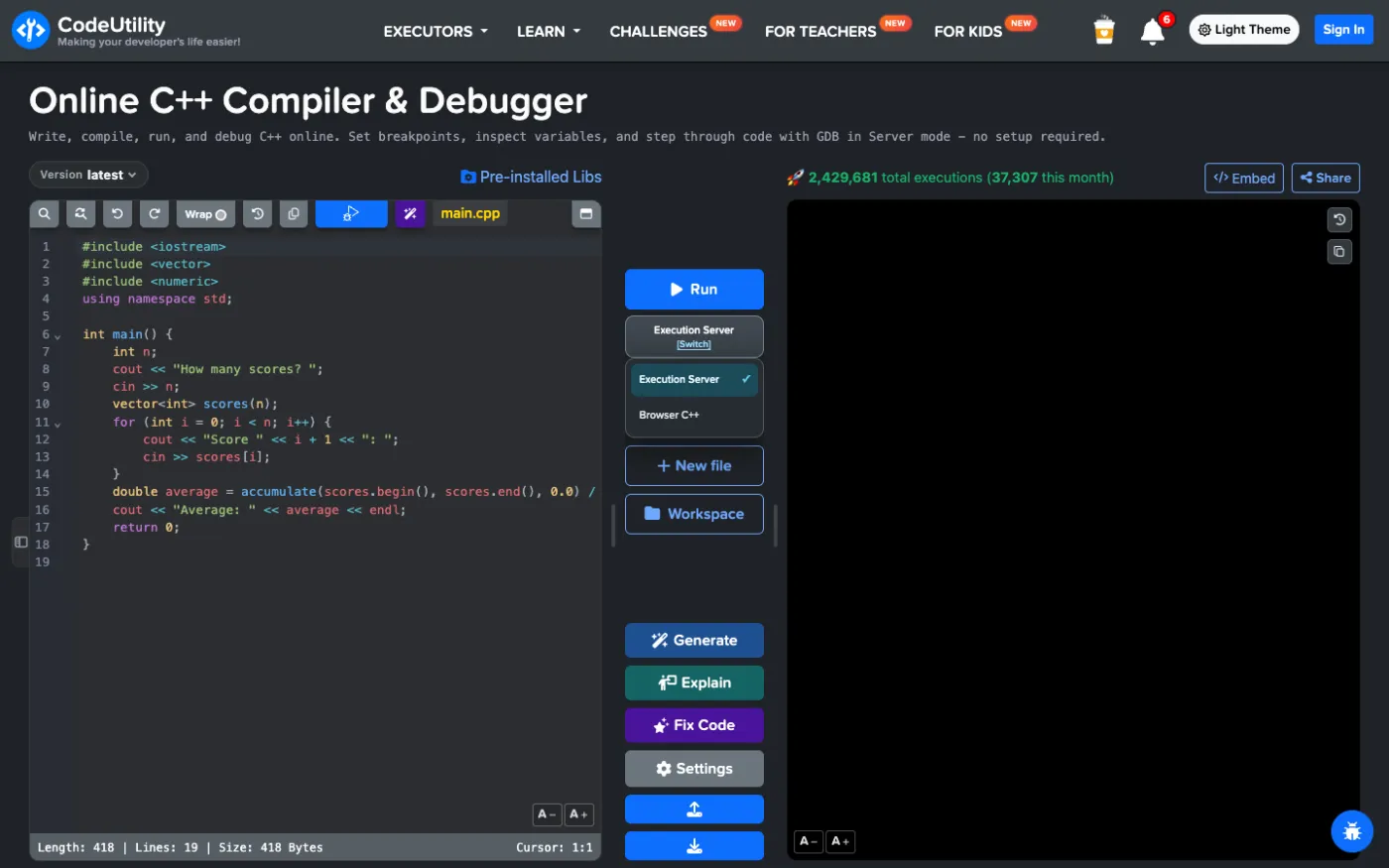
Run on the server or in your browser
The Execution Server switch lets you pick Browser C++, which compiles and runs your code locally with Clang in WebAssembly. It keeps working on unstable connections, while the server mode gives you interactive input, GDB and installed libraries.
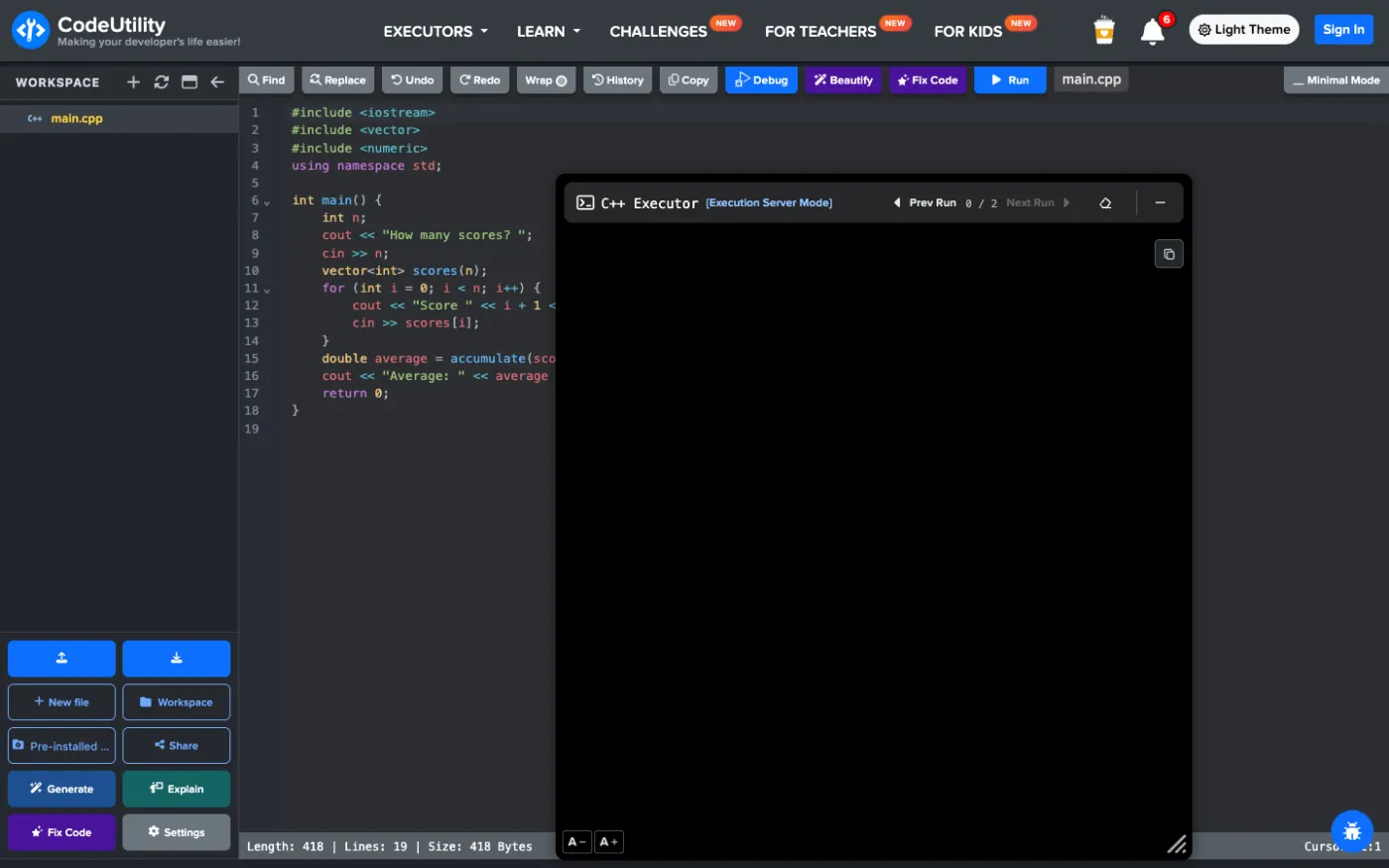
Advanced Mode for multi-file projects
Advanced Mode turns the page into an IDE with a file explorer and a floating terminal. With a free account your workspace keeps headers and source files in folders, with uploads, downloads and file history.
Sharing, embedding and AI
- Share one file or the whole workspace as a snapshot or a live workspace, with view and edit permissions.
- Live collaboration with cursors and a chat, useful for pair programming and tutoring.
- Embed creates a Run button for a README, blog or course.
- Generate, Explain and Fix Code use AI to write, explain or repair C++ code (free with an account).
- Beautify formats your code with one click.
Strengths
- Interactive cin input and a GDB debugger in the same page
- C++11, C++14, C++17 and latest
- Browser C++ mode with Clang in WebAssembly
- Saved workspace, live collaboration and AI help
Limitations
- No assembly output view (use Compiler Explorer for that)
Best for: students, interview practice and anyone who needs to run and debug real C++ programs.
Try the CodeUtility C++ compiler
2. Compiler Explorer
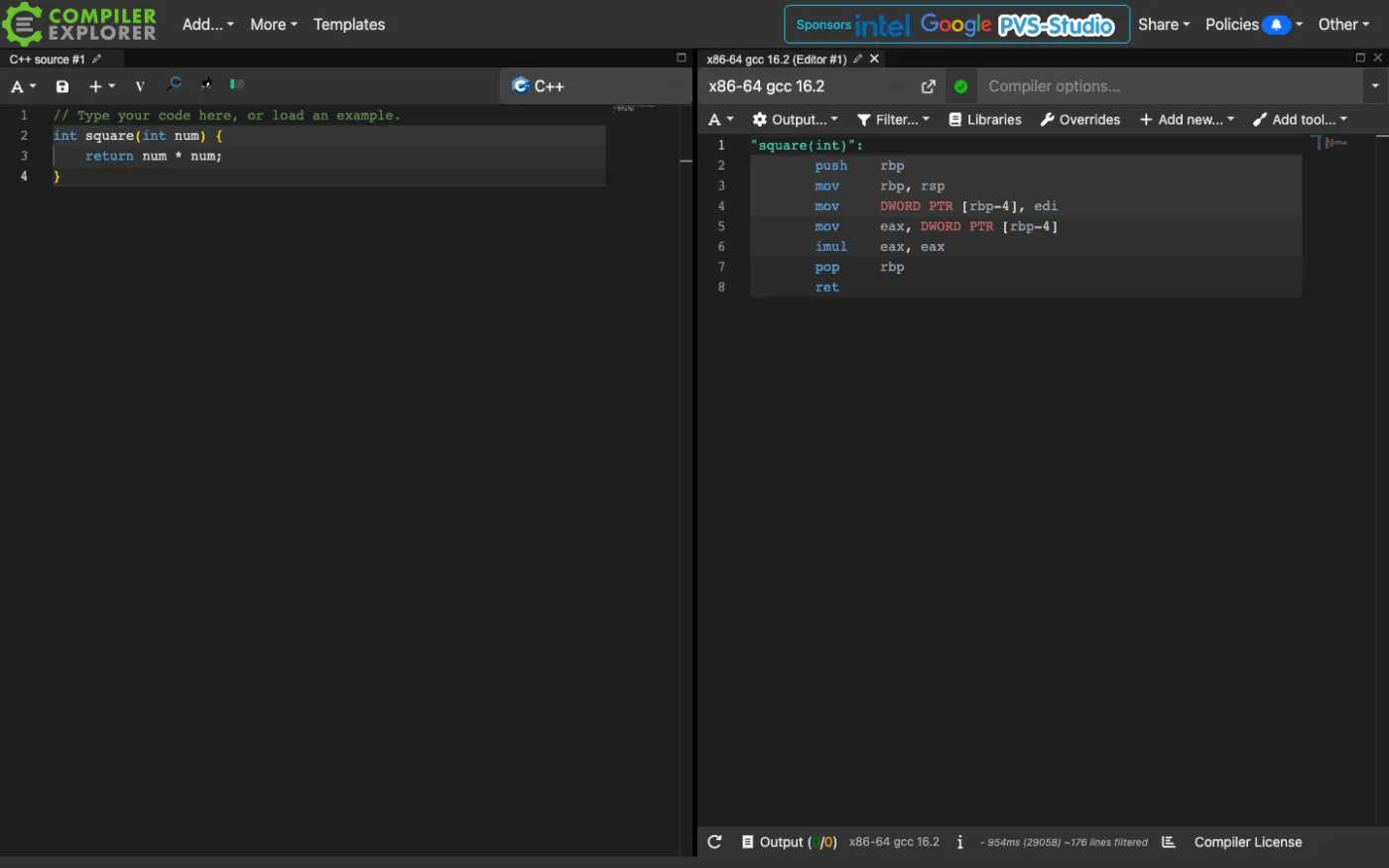
Compiler Explorer is the favorite tool of C++ experts. It shows the assembly your code produces, side by side with the source, for hundreds of compilers and versions (GCC, Clang, MSVC and more). It can also execute code and has libraries and overrides. It is not designed for interactive programs or beginners: input goes in a stdin box and there is no step debugger.
Strengths
- Huge list of compilers and versions
- Assembly output, optimization comparison and tools
- Short share links
Limitations
- No interactive input or debugger
- Complex for beginners
Best for: performance work, compiler comparisons and C++ language questions.
3. OnlineGDB
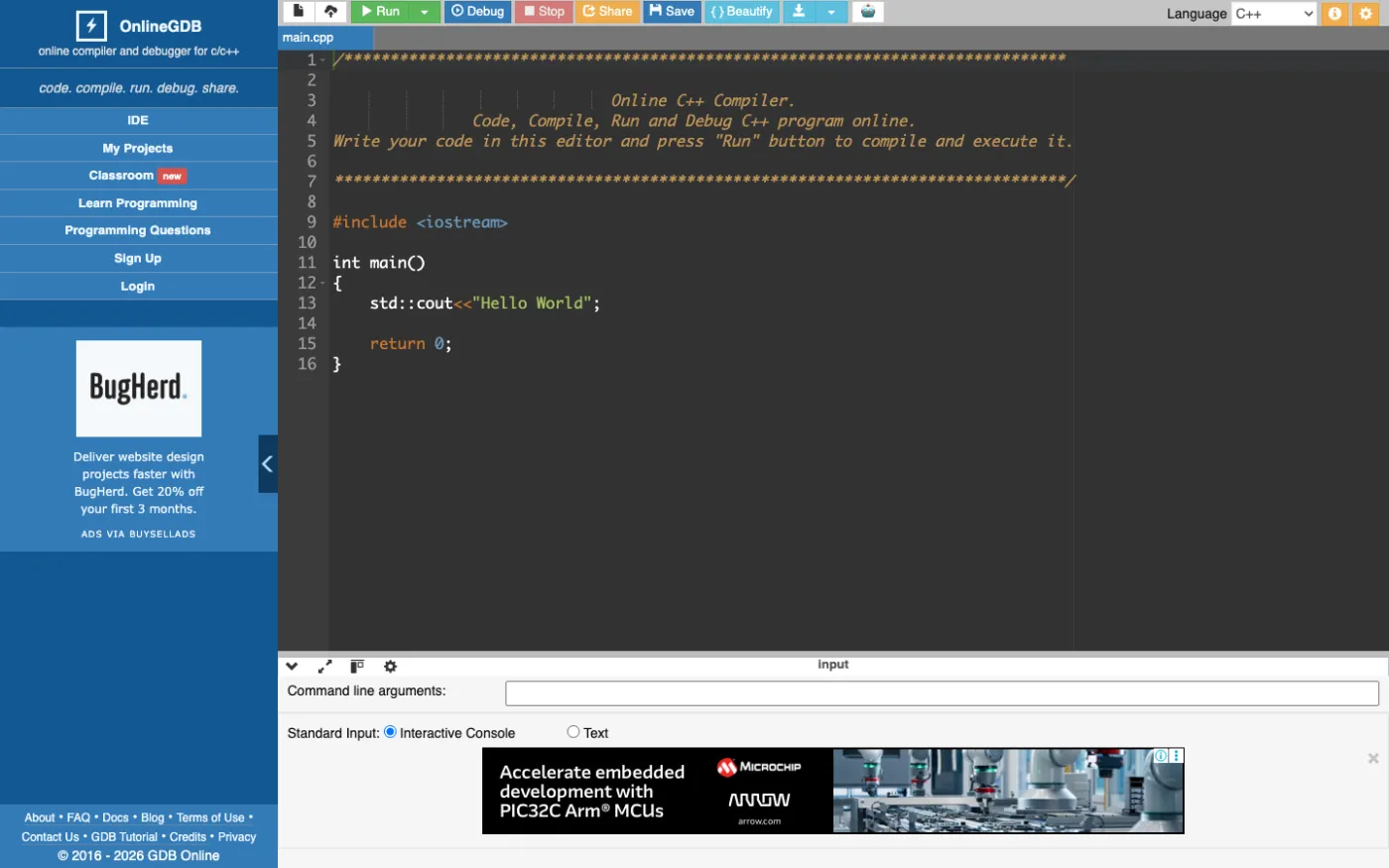
OnlineGDB was built around GDB, and debugging is still its main strength: breakpoints, stepping, watches and an interactive console. You can also pass command line arguments and work with several files. The interface is older and shows ads beside and under the editor.
Strengths
- Mature GDB debugger
- Command line arguments and multiple files
- Classroom feature
Limitations
- Dated interface and ads
- No live collaboration or browser mode
Best for: debugging C++ homework.
4. Programiz C++ Compiler
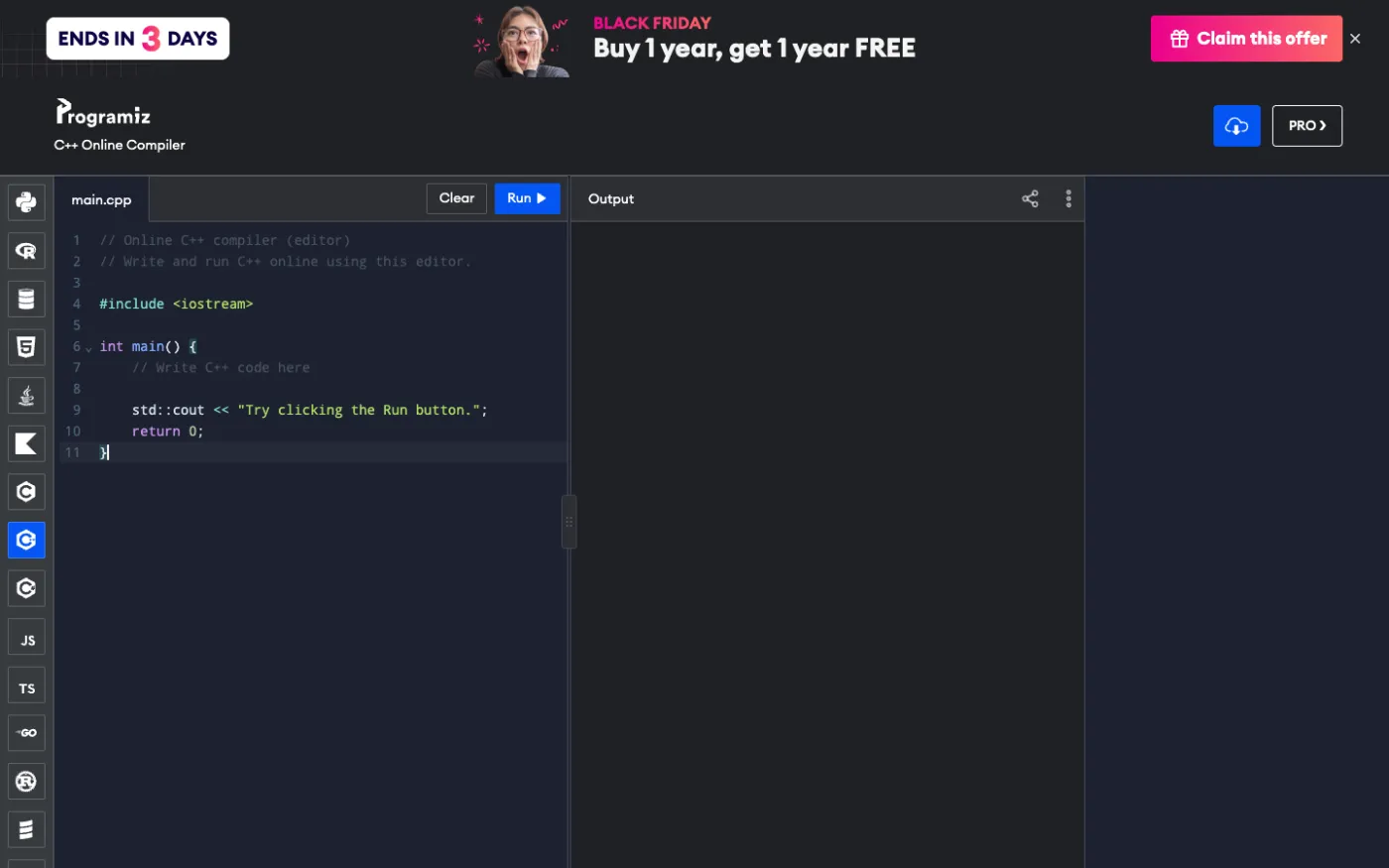
Programiz offers a clean single-file editor with input in the output panel. It is easy for a first program, but there is no debugger, no standard selector and no saved workspace. The page shows promotions for the paid plan.
Strengths
- Very simple
- Fits with Programiz C++ tutorials
Limitations
- Single file, no debugger
- No standard selection
Best for: beginners writing their first C++ programs.
5. JDoodle
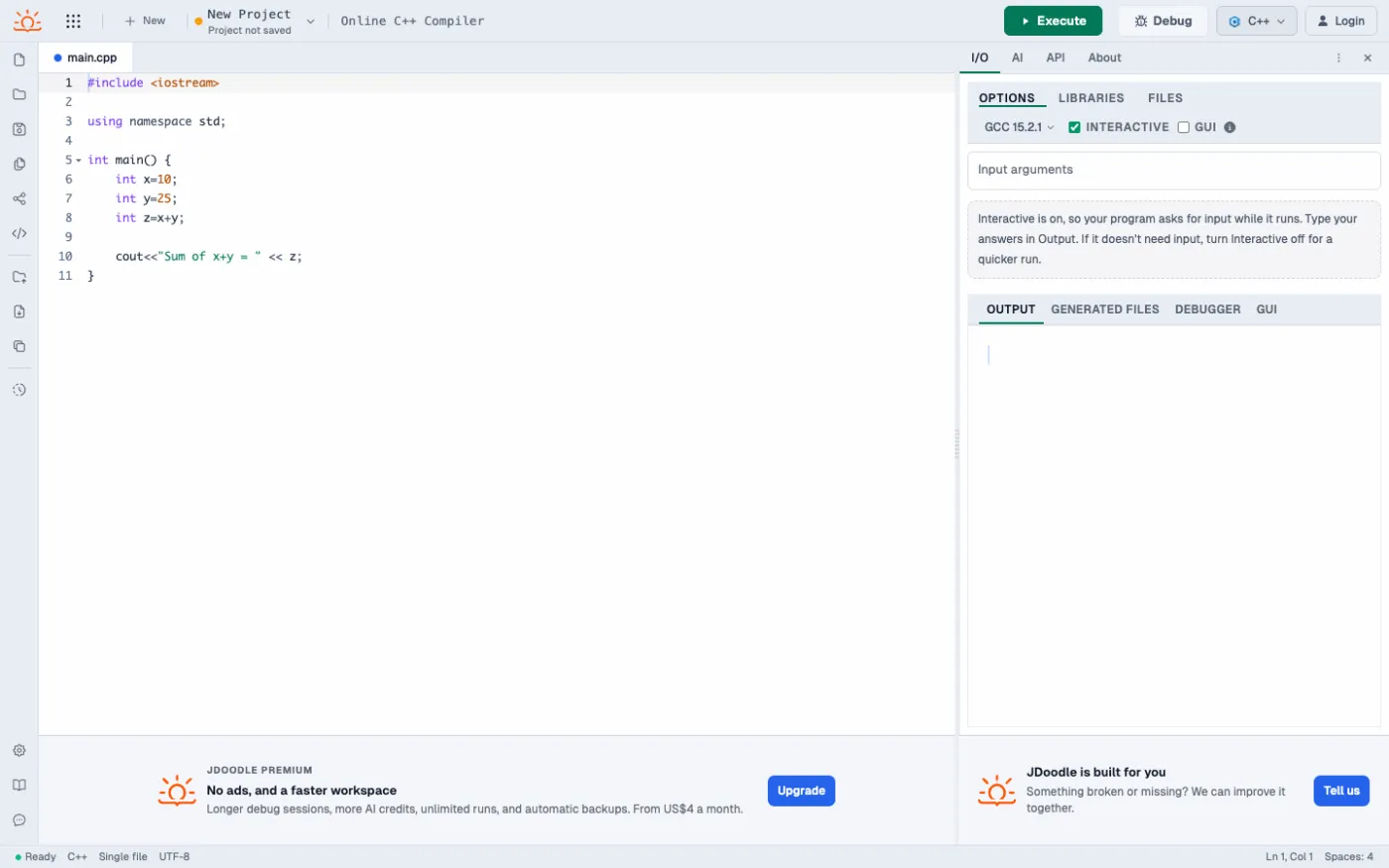
JDoodle runs a recent GCC with an interactive mode, a debugger tab, files, libraries and an AI assistant. Developers can also buy its compiler API.
Strengths
- Recent GCC and debugger
- Compiler API
Limitations
- Interactive input is a separate mode
- Free plan limits and upgrade prompts
Best for: quick checks and developers who need an API.
6. OneCompiler
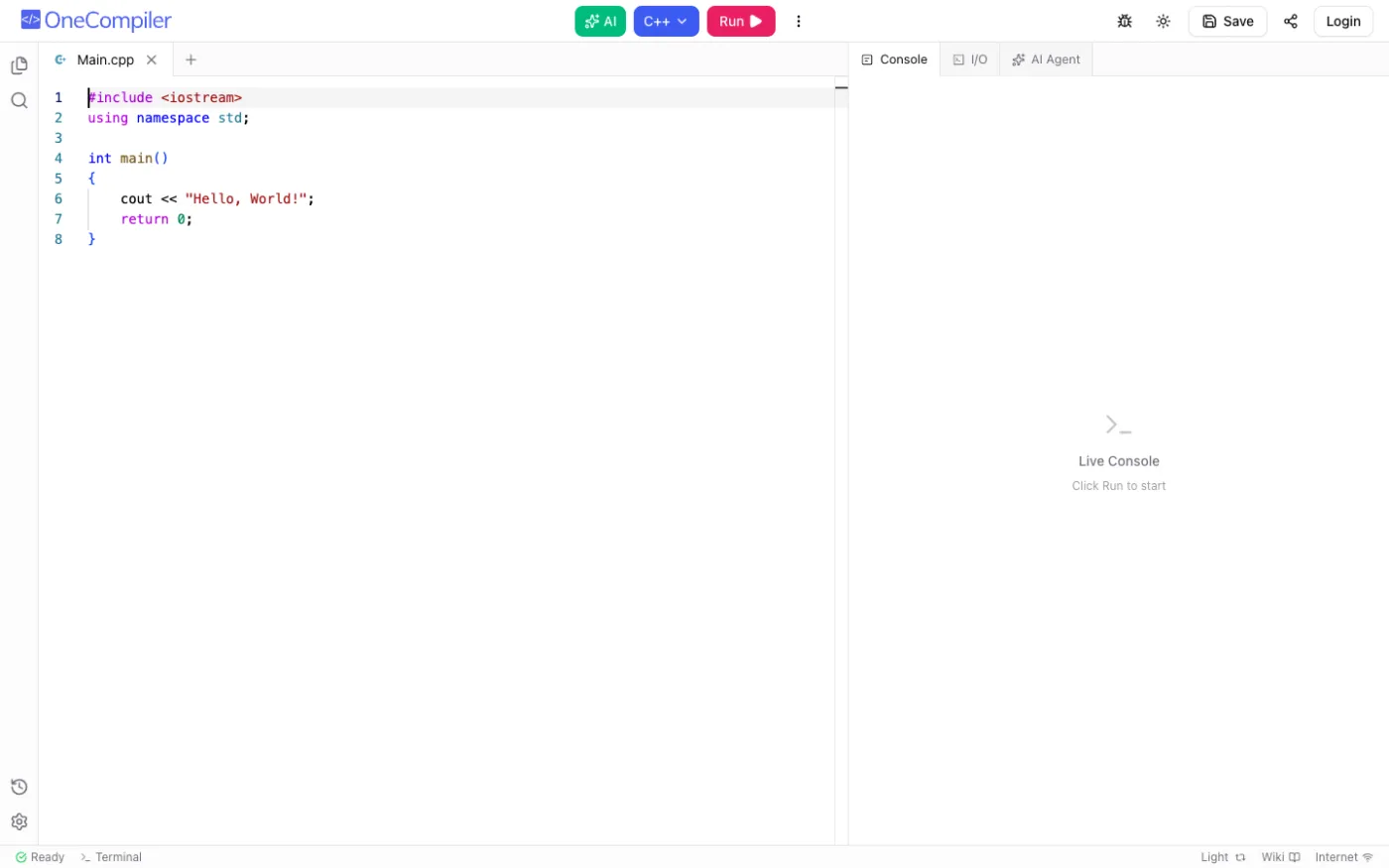
OneCompiler gives C++ the same interface it uses for dozens of languages: file tabs, a live console, an I/O tab, a debugger and AI tools. Saving and sharing need an account.
Strengths
- Consistent interface across languages
- Live console and AI tools
Limitations
- No standard selector
- Fewer C++-specific tools
Best for: people who switch between many languages.
Which online C++ compiler should you choose?
- Run, read input, debug and share in one place: CodeUtility.
- See the generated assembly or compare compilers: Compiler Explorer.
- Classic GDB debugging with command line arguments: OnlineGDB.
- Your very first C++ program: Programiz or CodeUtility.
FAQ
Can I use cin in an online C++ compiler?
Yes. In CodeUtility the program waits for your input in a real terminal, so you can type values one by one. Some tools ask you to enter all input in a box before the run.
Is there an online C++ compiler with a debugger?
CodeUtility and OnlineGDB both use GDB. CodeUtility shows variables such as vectors and the call stack in a debugger panel while you keep typing input in the terminal.
Which C++ standard does the online compiler use?
CodeUtility lets you choose the latest standard, C++11, C++14 or C++17 from the Version menu. Compiler Explorer lets you pass any flag, for example -std=c++23.
Try your code now in the CodeUtility online C++ compiler.